
Getting set up
Start with your invitation. Then there are two small jobs, once on each phone or computer you use. After that, the Keep opens with one tap.
Start here: your invitation
The Keep is private. You get in because someone in the family invited you.
- Find the email inviting you to The Keep. Not in your inbox? Look in Spam.
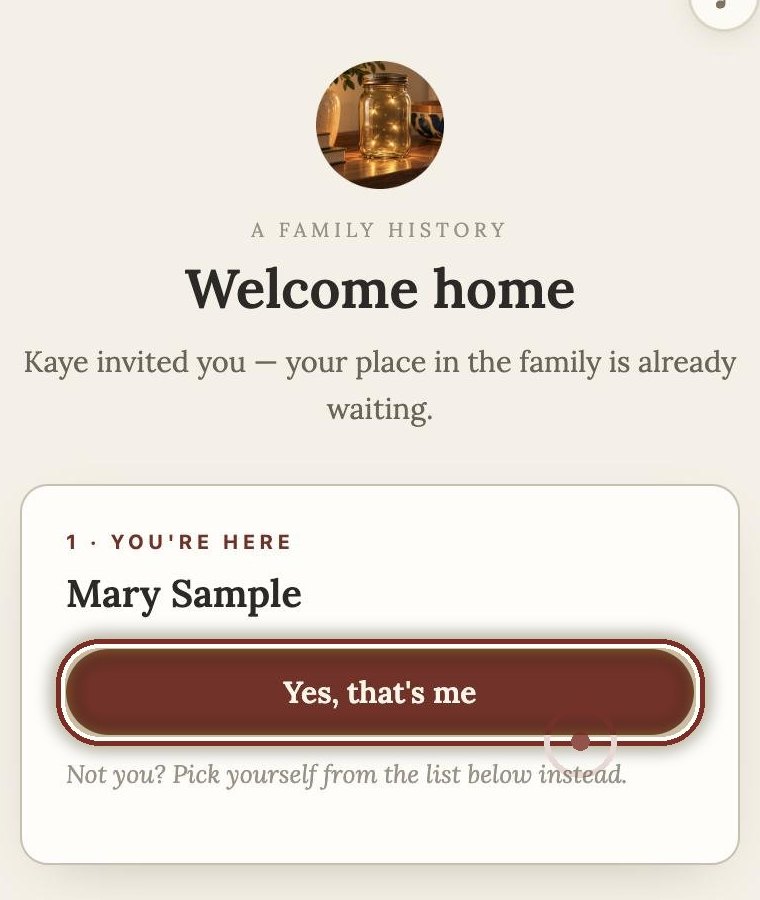
- Tap the link in the email. The Keep opens and shows your name.
- Tap Yes, that’s me.
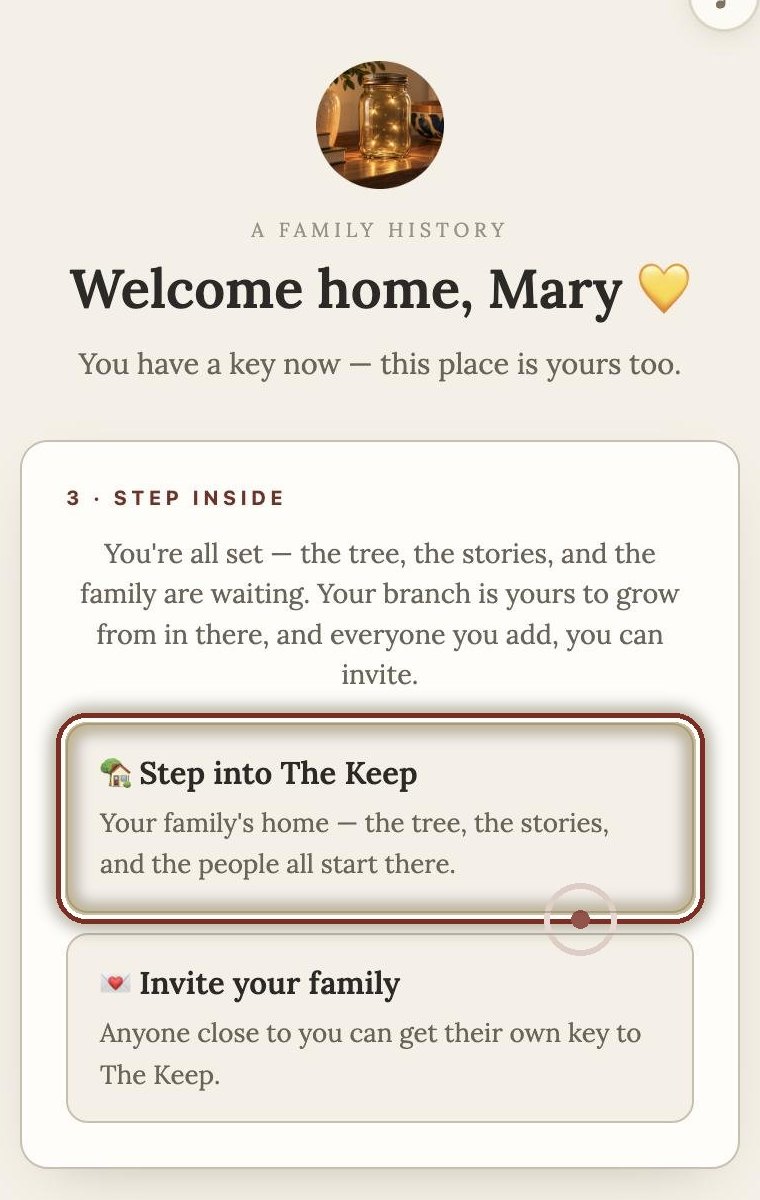
- Tap Step into The Keep, and look around.
Been in before? Skip this part. Go on to the two jobs below.
What are you holding?
1. Save the Keep to your Home Screen
This puts the Keep’s firefly beside your other apps. It is free, and it does not come from the App Store.
- Open Safari and go to thekeep.family.
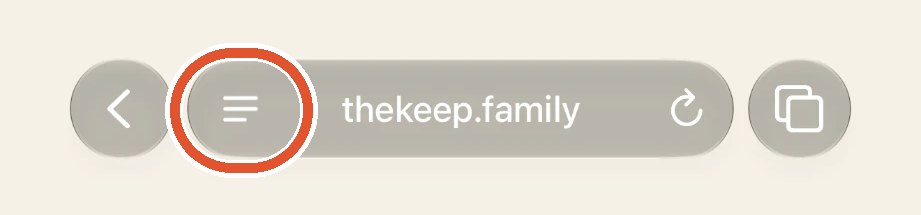
- Tap the three lines beside the address, at the bottom of the screen.
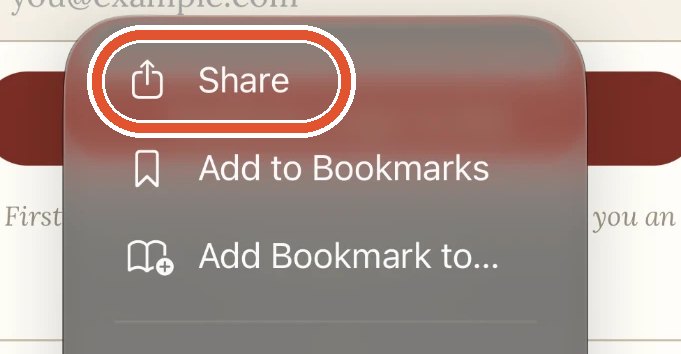
- Tap Share.
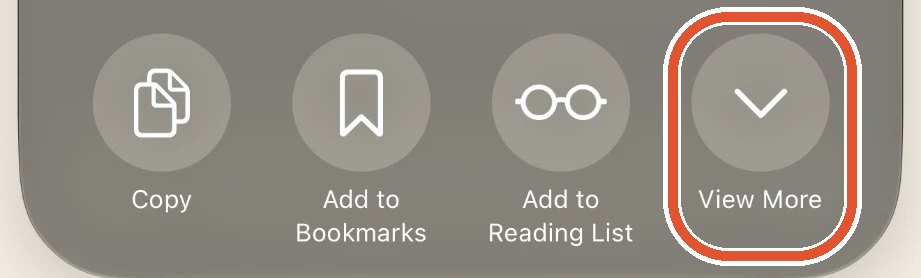
- Tap View More.
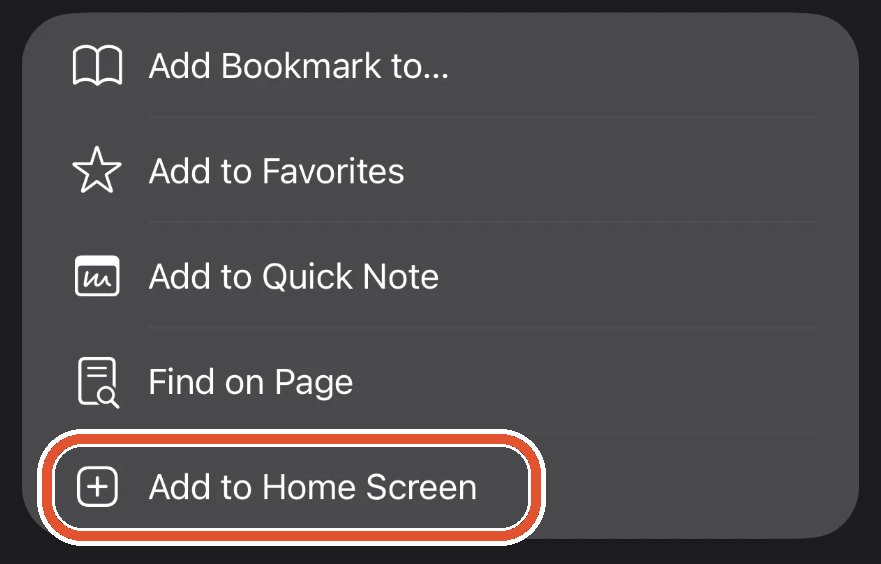
- Tap Add to Home Screen.
- Tap Add, at the top right of the screen.
- Close Safari. Find the Keep’s firefly on your Home Screen, and open the Keep from there from now on.

Finding it next time
Look for this firefly on your Home Screen. It says The Keep underneath. A new app goes in the first empty spot, so it may be on your last screen. Swipe left to look.
Still can’t see it? Put a finger in the middle of your Home Screen and swipe down. Type Keep, then tap the firefly.
Or type the address. Open your browser and go to thekeep.family. The Keep opens there too.
Does your iPhone look different? On some iPhones the Share button is a square with an arrow pointing up, at the bottom of Safari. Tap it, then scroll down to Add to Home Screen.
1. Save the Keep to your Home screen
This puts the Keep’s firefly beside your other apps. It is free, and it does not come from an app store.
- Open Chrome and go to thekeep.family.
- Tap the three dots at the top right of the screen.
- Tap Add to Home screen. (Some phones say Install app.)
- Tap Install.
- Find the Keep’s firefly on your Home screen, and open the Keep from there from now on.
Finding it next time
Look for this firefly on your Home screen. It says The Keep underneath. It may be on your last screen. Swipe left to look.
Still can’t see it? Swipe up from the bottom of the screen to see all your apps. Type Keep in the search box at the top, then tap the firefly.
Or type the address. Open your browser and go to thekeep.family. The Keep opens there too.
1. Save the Keep to your Mac
This gives the Keep its own window and its own firefly in your Dock. It is free.
- Open Chrome or Safari and go to thekeep.family.
- In Chrome: look at the right end of the address bar for a small picture of a screen with an arrow. Click it, then click Install. The Keep opens in its own window, and its firefly shows in your Dock.
- Still in Chrome: the firefly leaves the Dock when you close the Keep, unless you tell it to stay. Hold control and click the firefly, then click Options, then Keep in Dock.
- In Safari: click File at the very top of the screen, then Add to Dock.
- Open the Keep from its firefly in your Dock from now on.
Finding it next time
Look for this firefly in your Dock, the row of pictures along the bottom of the screen. Click it once.
Still can’t see it? Hold the command key and press the space bar. Type Keep, then press return.
Or type the address. Open your browser and go to thekeep.family. The Keep opens there too.
Can’t find it? You can skip this job. The Keep works just as well in your browser at thekeep.family.
1. Save the Keep to your computer
This gives the Keep its own window and its own firefly on your desktop. It is free.
- Open Chrome or Edge and go to thekeep.family.
- Look at the right end of the address bar for a small picture of a screen with an arrow. Click it.
- Click Install.
- Open the Keep from its firefly on your desktop or Start menu from now on.
Finding it next time
Look for this firefly on your desktop. Click it twice, quickly.
Still can’t see it? Click the Start button at the bottom of the screen. Type Keep, then click The Keep.
Or type the address. Open your browser and go to thekeep.family. The Keep opens there too.
Can’t find it? You can skip this job. The Keep works just as well in your browser at thekeep.family.
2. Sign in with your face or fingerprint
There are no passwords in the Keep. The first time, we email you a code. After that, your own phone or computer lets you in.
- Open the Keep from your Home Screen.Open the Keep from your Home screen.Open the Keep.Open the Keep.
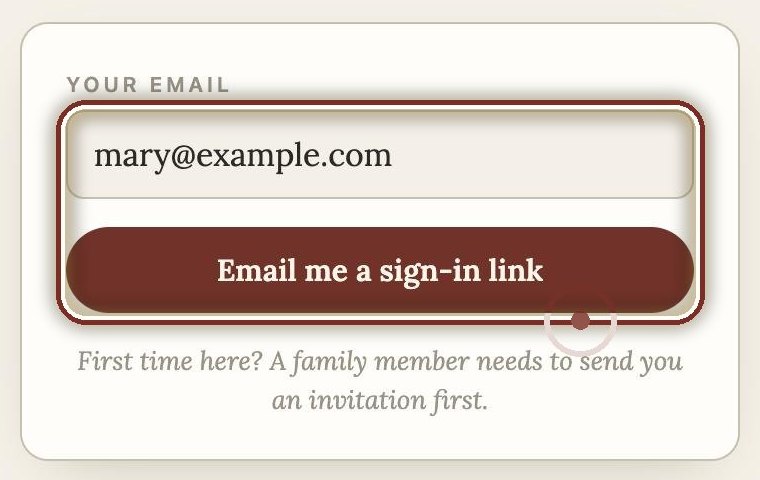
- Type your email, then tap Email me a sign-in link.
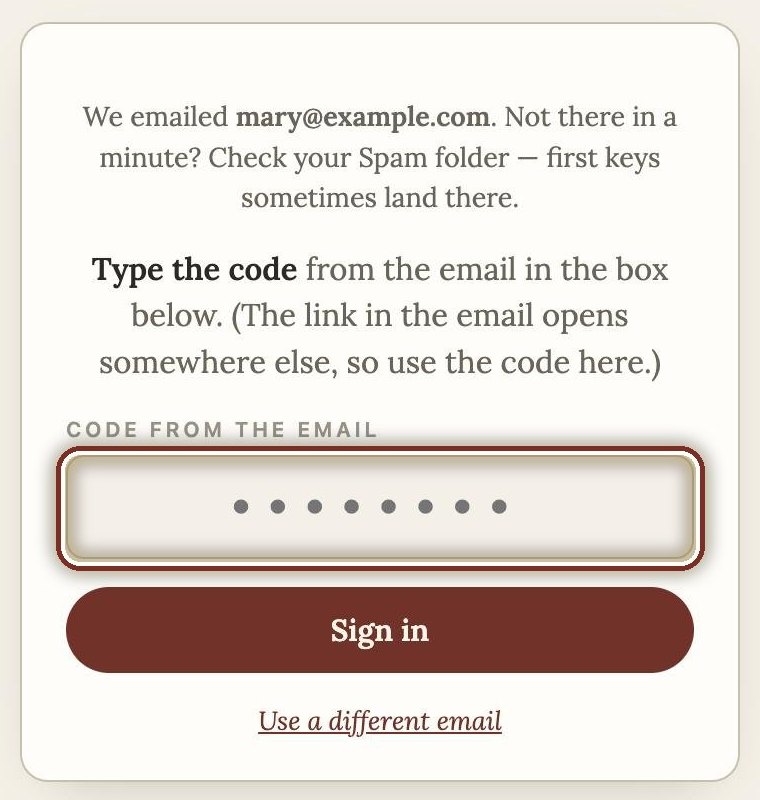
- Open the email from the Keep and find the code. It is a row of numbers. Come back to the Keep, type the code, and tap Sign in.
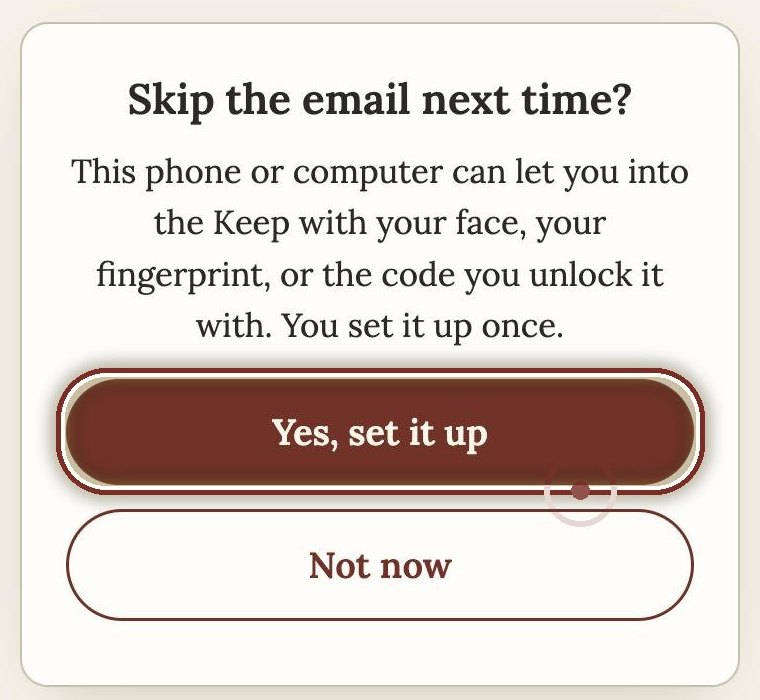
- The Keep asks Skip the email next time? Tap Yes, set it up.
- Your phone or computer asks to save it. (It may call this a passkey.) Say yes, then use your face, your fingerprint, or the code you unlock it with.
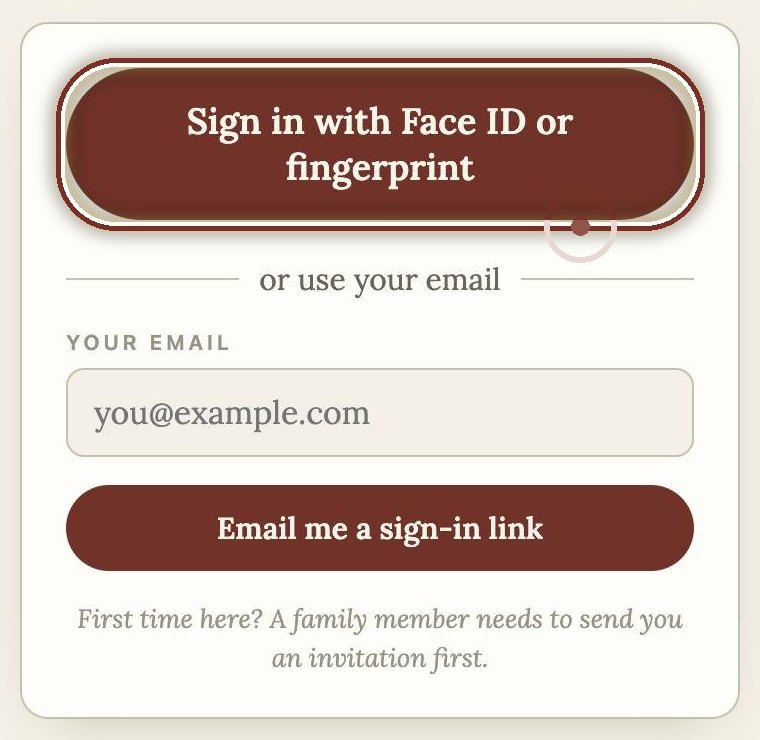
- You are in, and you stay in until you sign out. If the Keep ever asks again, tap Sign in with Face ID or fingerprint.
Type the code. Don’t tap the link. The link in the email opens Safari, not the Keep on your Home Screen.
The email code always works. New phone, borrowed computer, or it just won’t take your face? Ask for a code again.
Set up Face ID or fingerprint nowRather watch it done?
A short film on an iPhone. It has no sound.
Stuck?
Email us, and someone will write back to help.
Email us for helpOr write to thekeepsupport@gmail.com